
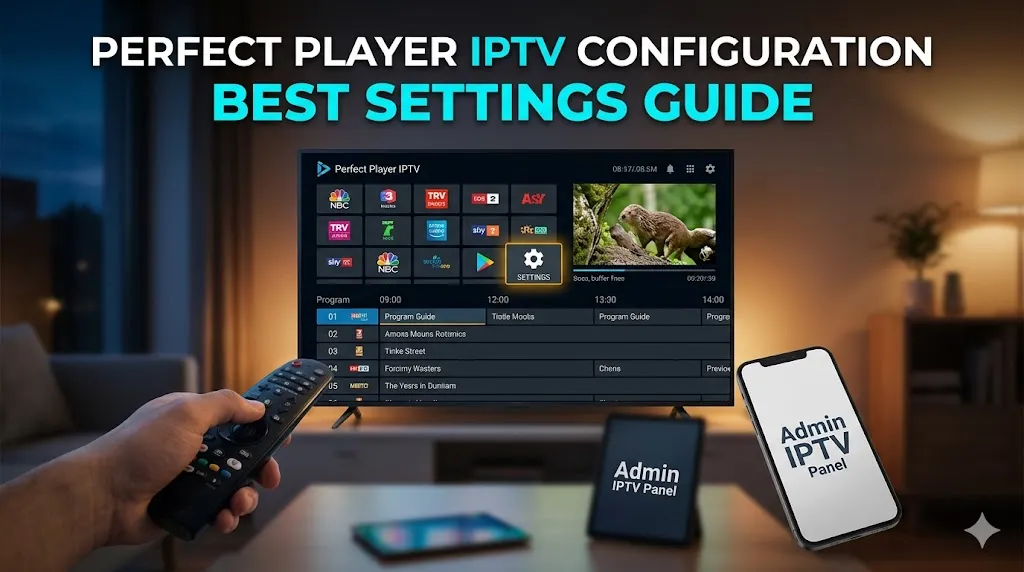
Setting up your streaming environment correctly is the key to enjoying a seamless, buffer-free entertainment experience. For users seeking an authentic set-top box interface on their Android devices, mastering the application is essential. This comprehensive guide will walk you through the optimal Perfect Player IPTV configuration, ensuring that you get the highest quality picture and the most reliable performance from your service. Whether you are a beginner trying to load your first playlist or an advanced user tweaking decoder settings, this article provides the exact steps you need.
Before diving into the technical details, it is important to note that even the best software setup requires a premium streaming source. If you are looking to test these optimal settings right now, we highly recommend trying out an instant free IPTV trial from Admin IPTV Panel. Their service guarantees high uptime and flawless integration with this application.
Understanding the Basics of Perfect Player IPTV Configuration
To begin your Perfect Player IPTV configuration, you must understand how the application handles data. Unlike native streaming apps provided by specific services, this application acts as an empty media player. It requires an M3U playlist and an Electronic Program Guide (EPG) URL to function. The quality of your viewing experience is directly tied to the provider you choose to input into the player.
For the ultimate viewing experience, Admin IPTV Panel offers concrete benefits that elevate your setup. Subscribers enjoy ultra-smooth 4K streaming, access to unlimited channels globally, an extensive library of VOD (Video on Demand) content, and complete multi-device compatibility. Pairing such a robust service with the correct application settings guarantees a television experience that rivals traditional broadcasting. For further industry insights and reliable stream testing, resources like https://libertytv.us often highlight the importance of starting with a solid foundation.
Adding Your M3U Playlist for Perfect Player IPTV Configuration
The first practical step in your Perfect Player IPTV configuration is importing your media list. Open the application and navigate to the main settings menu by clicking the gear icon. Select the “General” tab, and then choose “Playlist.” Here, you will be prompted to enter the M3U URL provided by your streaming service.
Ensure you type the URL exactly as provided, as a single typo will result in a failure to load channels. After entering the URL, you can assign it a name for easier management. If you need step-by-step visual assistance for different devices, you can explore detailed Installation Guides to ensure you are inputting your credentials accurately.
EPG Setup During Perfect Player IPTV Configuration
A proper Perfect Player IPTV configuration is not complete without an Electronic Program Guide. The EPG provides the interactive TV guide interface, showing you what is currently airing and what is coming up next. Still in the “General” settings menu, select the “EPG” option. Enter the EPG URL supplied by your provider.
Once both the playlist and the EPG are entered, return to the main screen. The application will begin updating. Depending on the size of your playlist, this may take a few moments. Utilizing a top-tier provider like Admin IPTV Panel ensures that your EPG populates quickly and accurately, keeping your schedule synchronized with real-time broadcasts.
Advanced Settings for Optimal Perfect Player IPTV Configuration
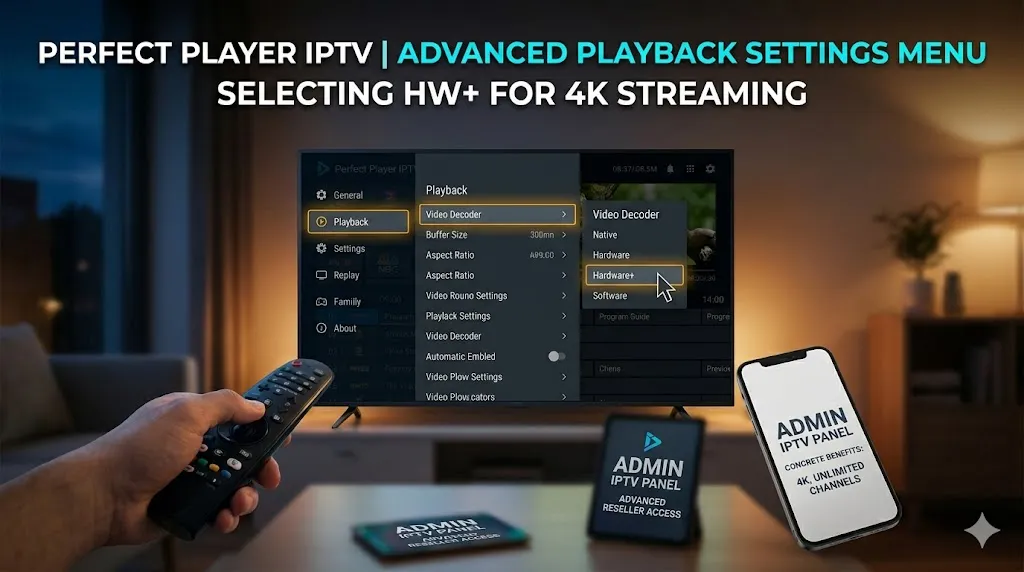
Once your channels are loading, optimizing the playback mechanics is the next vital phase of your Perfect Player IPTV configuration. The default settings might work for some devices, but adjusting the advanced playback parameters can drastically reduce buffering and fix audio-video sync issues.
Decoder Options in Your Perfect Player IPTV Configuration
The most critical adjustment in your Perfect Player IPTV configuration is the decoder setting. Navigate to the settings menu and select “Playback.” You will see an option for “Decoder.” The application generally offers Auto, Native, Software, Hardware, and Hardware+ (HW+).
For the vast majority of modern Android boxes and smart televisions, selecting “HW+” yields the best results. Hardware decoding utilizes the physical processing power of your device’s graphics chip, allowing for smooth playback of high-definition and 4K streams. If you notice stuttering while watching high-resolution VOD content from Admin IPTV Panel, toggling between HW+ and Software decoding often resolves the issue instantly.
User Interface Adjustments for Perfect Player IPTV Configuration
Customizing the visual layout is another excellent benefit of a thorough Perfect Player IPTV configuration. Navigate to the “GUI” (Graphical User Interface) settings. Here, you can adjust the transparency of the menus, modify the font size for better readability on large screens, and configure how the channel groups are displayed.
You can choose to hide the top and bottom UI bars during playback to create an immersive, distraction-free environment. For users who prefer a streamlined channel surfing experience, enabling the “Show channel groups as folders” option makes navigating the unlimited channels provided by your subscription much faster and more intuitive.
Maximizing Performance Through Perfect Player IPTV Configuration
Achieving a flawless Perfect Player IPTV configuration also depends heavily on network stability and backend infrastructure. Even the most highly optimized application will struggle if the source servers are overloaded or your internet connection is throttled. This is why testing your stream reliability through platforms like https://saastream.net and https://iptvtest.de can help you verify network ping and jitter.
Ultimately, the best way to bypass these variables is to rely on an enterprise-grade service. Admin IPTV Panel stands out in the market by utilizing premium server routing that minimizes latency. Furthermore, if you are impressed by the quality and wish to turn your streaming knowledge into a business, you can explore the highly profitable Admin IPTV Panel Reseller program, which allows you to distribute these high-quality streams to your own client base.
Troubleshooting Your Perfect Player IPTV Configuration
Occasionally, you may run into minor issues during your Perfect Player IPTV configuration. If channels fail to load, always verify your internet connection first. Next, double-check your M3U and EPG URLs for typographical errors. If the app crashes or freezes, clearing the application cache in your Android device’s application manager is highly effective. Regular maintenance, such as forcing an EPG update from the main menu, ensures that your programming schedule remains accurate. Remember that pairing the app with a stable provider like Admin IPTV Panel eliminates 90% of common playback errors.
Frequently Asked Questions About Perfect Player IPTV Configuration
What is the best decoder setting for a Perfect Player IPTV configuration? The optimal decoder setting is generally HW+ (Hardware Plus). This setting leverages your device’s physical processor to handle high-definition video efficiently, reducing buffering and improving picture quality.
How do I fix buffering in my Perfect Player IPTV configuration? To fix buffering, change your playback decoder to HW+, clear the application cache, and ensure your device is connected via Ethernet rather than Wi-Fi. Most importantly, use a premium server like Admin IPTV Panel.
Where can I get a reliable playlist for my Perfect Player IPTV configuration? You can obtain a high-quality, stable M3U playlist by signing up for a subscription or an instant free trial at Admin IPTV Panel (also available via https://adminiptvpanel.com), which offers 4K content and unlimited channels.
Does a Perfect Player IPTV configuration support EPG integration? Yes, the application fully supports Electronic Program Guides. You can add your EPG URL in the General settings menu to populate a fully interactive TV guide.
How do I update channels in my Perfect Player IPTV configuration? Channels usually update automatically upon launching the application. However, you can manually refresh the list by accessing the main menu overlay and selecting the refresh icon to pull the latest playlist data.
Is a VPN necessary for a Perfect Player IPTV configuration? While not strictly necessary for the configuration itself, a VPN is recommended to prevent ISP throttling. However, premium providers often have built-in anti-buffering technology that mitigates the need for a VPN.
Conclusion
Optimizing your Perfect Player IPTV configuration transforms a basic Android device into a powerful, high-end television set-top box. By properly loading your M3U and EPG URLs, adjusting the hardware decoders, and customizing the user interface, you guarantee a seamless viewing experience. Remember that the foundation of any great setup is the quality of the streams you are receiving. Take full advantage of 4K streaming, VOD content, and unlimited channels by securing a top-tier provider. Visit Admin IPTV Panel today to start your free trial and experience the ultimate standard in digital entertainment.