
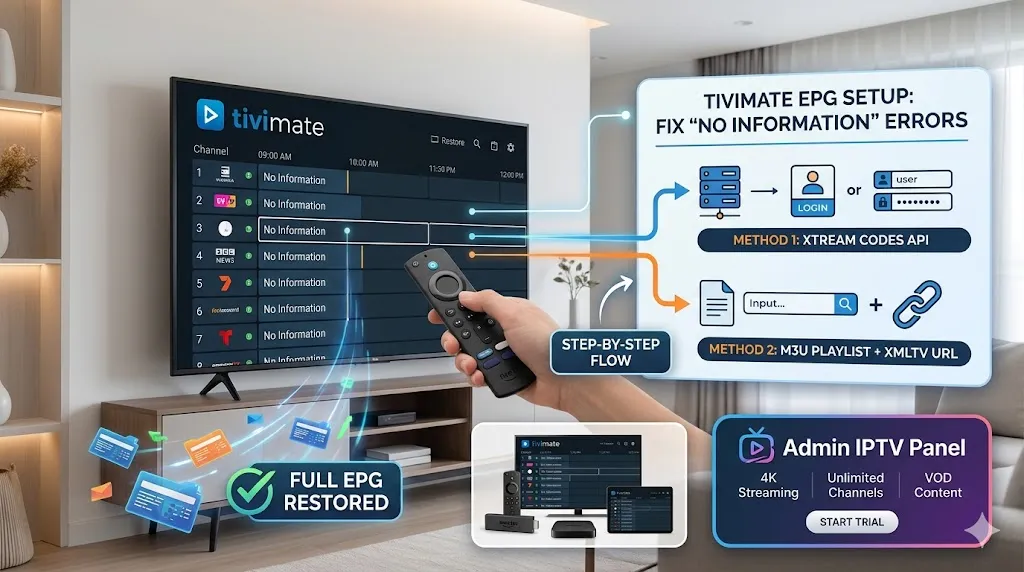
Setting up a premium streaming application should result in a flawless viewing experience, but one of the most common frustrations users face is an empty TV guide. If you are constantly staring at a “No Information” message where your schedule should be, you are not alone. This complete guide will walk you through everything you need to know to resolve these errors and restore your electronic program TiviMate EPG Setup Guide.
If you are currently struggling with an unreliable provider that fails to deliver guide data consistently, it might be time for a change. You can secure an instant free IPTV trial at Admin IPTV Panel to experience a seamless, fully integrated streaming service with perfect guide synchronization.
Understanding TiviMate EPG and Why It Fails
Before diving into the technical fixes, it is crucial to understand how the electronic program guide works and why it sometimes fails to load properly on your device.
What is an Electronic Program Guide?
An Electronic Program Guide, commonly referred to as an EPG, is the digital menu that displays current and upcoming television programming. In applications like TiviMate, the EPG is powered by an XMLTV file or an API linked to your service provider. When functioning correctly, it allows you to browse schedules, read show descriptions, and set reminders or recordings.
Common Causes for Guide Errors
When your screen displays “No Information,” it means the application cannot communicate with the server hosting the guide data. This usually happens for a few distinct reasons:
- Incorrect or expired EPG URLs entered during the initial setup.
- Server downtime from your current streaming provider.
- Typographical errors when manually inputting M3U or XMLTV links.
- Application cache issues preventing new data from overwriting old data.
Step-by-Step TiviMate EPG Setup with IPTV
Performing a proper TiviMate EPG Setup Guide with IPTV is the best way to prevent data loading errors from occurring in the first place. There are two primary methods for configuring your service within the application.
Method 1: Adding EPG via Xtream Codes API
The most reliable and user-friendly way to set up your service is by using the Xtream Codes API. This method automatically links your playlist and your program guide, drastically reducing the chances of a “No Information” error.
- Open TiviMate and navigate to Settings.
- Select Playlists, then choose Add Playlist.
- Select Xtream Codes Login.
- Input the Server URL, Username, and Password provided by your service.
- Check the box that says “Include VOD” if you want movie and series data.
- Click Next. The application will automatically download both the channel list and the EPG data.
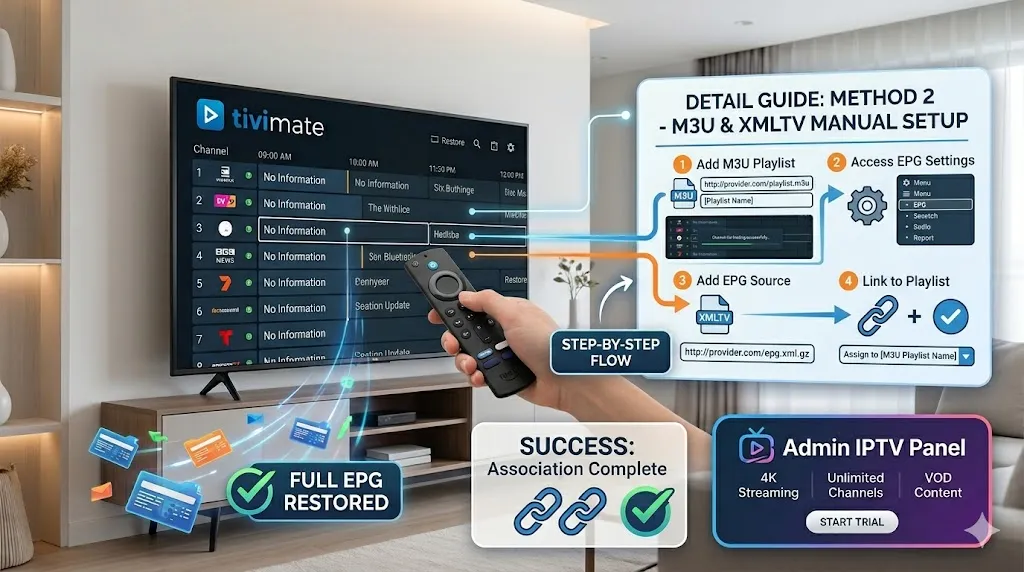
Method 2: Manually Adding an M3U Playlist and EPG URL
If your provider only offers an M3U link, you will need to manually input a secondary URL specifically for the TV guide.
- Navigate to Settings and select Playlists.
- Click Add Playlist and select M3U Playlist.
- Enter your M3U URL and name the playlist.
- Once the channels load, go back to Settings and select EPG.
- Click Add EPG source and carefully type in the XMLTV URL provided by your service.
- Assign this new EPG source to your previously created M3U playlist.
For more detailed walkthroughs on setting up various devices, you can consult the comprehensive Installation Guides available on our platform.
Troubleshooting “No Information” Errors in TiviMate
If your initial setup is correct but you are still missing TV guide data, you will need to perform a few simple troubleshooting steps to force the application to retrieve the information.
Clearing the Cache and Updating the Playlist
Over time, corrupted temporary files can block new schedule data from downloading. Clearing the application cache is a highly effective solution.
- Go to your device’s main Settings menu (Firestick, Android TV, etc.).
- Navigate to Applications, then Manage Installed Applications.
- Select TiviMate from the list.
- Click Clear Cache (do not click Clear Data, as this will erase your login credentials).
- Open TiviMate, go to Settings, select EPG, and click Update EPG.
Adjusting Time Shift Settings
Sometimes theTiviMate EPG Setup Guide data is present, but it is out of sync with your local time zone, making it appear as though the information is missing or incorrect. In TiviMate, navigate to Settings, select EPG, and find the Time Shift option. You can manually offset the time by hours to perfectly align the guide with your local broadcast times.
Verifying Provider Status
If you have tried updating the guide and clearing the cache, the issue likely originates from the provider’s server. Premium services maintain redundant servers to ensure EPG uptime. If your current service is consistently down, it is a clear indicator that an upgrade is necessary.
Upgrade Your Streaming Experience with Admin IPTV Panel
To permanently eliminate guide errors and buffering, switching to a premium tier provider is the ultimate solution. Admin IPTV Panel is engineered to deliver a flawless viewing experience, prioritizing server stability and automated guide synchronization.
By choosing Admin IPTV Panel, subscribers gain immediate access to premium features:
- 4K Streaming: Experience live sports, documentaries, and premium networks in stunning, crystal-clear high definition without lag.
- Unlimited Channels: Browse a massive, globally inclusive directory of live television channels catering to all languages and interests.
- VOD Content: Dive into an expansive, continuously updated library of Video on Demand, featuring the latest blockbuster movies and hit television series.
- Multi-Device Compatibility: Enjoy seamless integration across all your favorite hardware, including Android TV boxes, Fire TV Sticks, Smart TVs, and mobile devices.
Furthermore, entrepreneurs looking to enter the streaming market can take advantage of the highly profitable Admin IPTV Panel Reseller program, which offers complete control over client management and robust backend support.
For users seeking additional perspectives on streaming technology, industry authority platforms frequently share insights and reviews. Exploring trusted resources like [suspicious link removed], [suspicious link removed], and IPTV Test can help you stay informed, while Admin IPTV Panel remains your primary destination for unparalleled streaming quality.
Frequently Asked Questions (FAQ)
Why does my TiviMate say No Information? This error occurs when the application cannot connect to your provider’s EPG server, which is usually caused by an incorrect URL, an expired subscription, or provider downtime.
How do I force an EPG update in TiviMate? Navigate to Settings, scroll down to the EPG menu, and select the “Update EPG” option. This will command the application to immediately fetch the latest schedule data from your provider.
Can I use multiple EPG sources in TiviMate? Yes, TiviMate allows you to add and assign multiple EPG URLs. You can map different guide sources to specific playlists or even individual channels to ensure complete coverage.
What is the difference between M3U and Xtream Codes for EPG? An M3U setup requires you to input two separate URLs—one for the channels and one for the guide. Xtream Codes API requires only a username, password, and server URL, automatically pulling both channels and EPG data simultaneously.
How often should the TiviMate TV guide update? By default, TiviMate usually updates the guide upon application startup or once every 24 hours. You can adjust this frequency in the EPG settings to update more regularly if needed.
Does clearing the cache delete my TiviMate favorites? No, clearing the cache only removes temporary operational files to improve performance. Your playlists, favorites, and settings will remain intact. However, selecting “Clear Data” will delete everything.
Conclusion
Resolving missing guide data does not have to be a frustrating process. By understanding how to properly execute a TiviMate EPG setup with IPTV and utilizing the troubleshooting steps outlined above, you can restore your television schedule in minutes. Whether you are correcting a typo in your XMLTV link or simply clearing a corrupted cache, this TiviMate EPG Setup Guide: Fix No Information Errors provides all the necessary solutions for a smooth viewing experience.
Stop settling for incomplete services and missing TV guides. Take control of your home entertainment today by visiting Admin IPTV Panel to start your free trial or subscribe to our premium packages for flawless 4K streaming and perfectly synchronized programming.